
Step 1: Create the access key
1. Login to Google Workspace Admin account and navigate to Google developers console. NOTE: Remember the id with which you generated the key as it has to be used to register key with Vaultastic.
Http link: https://console.developers.google.com
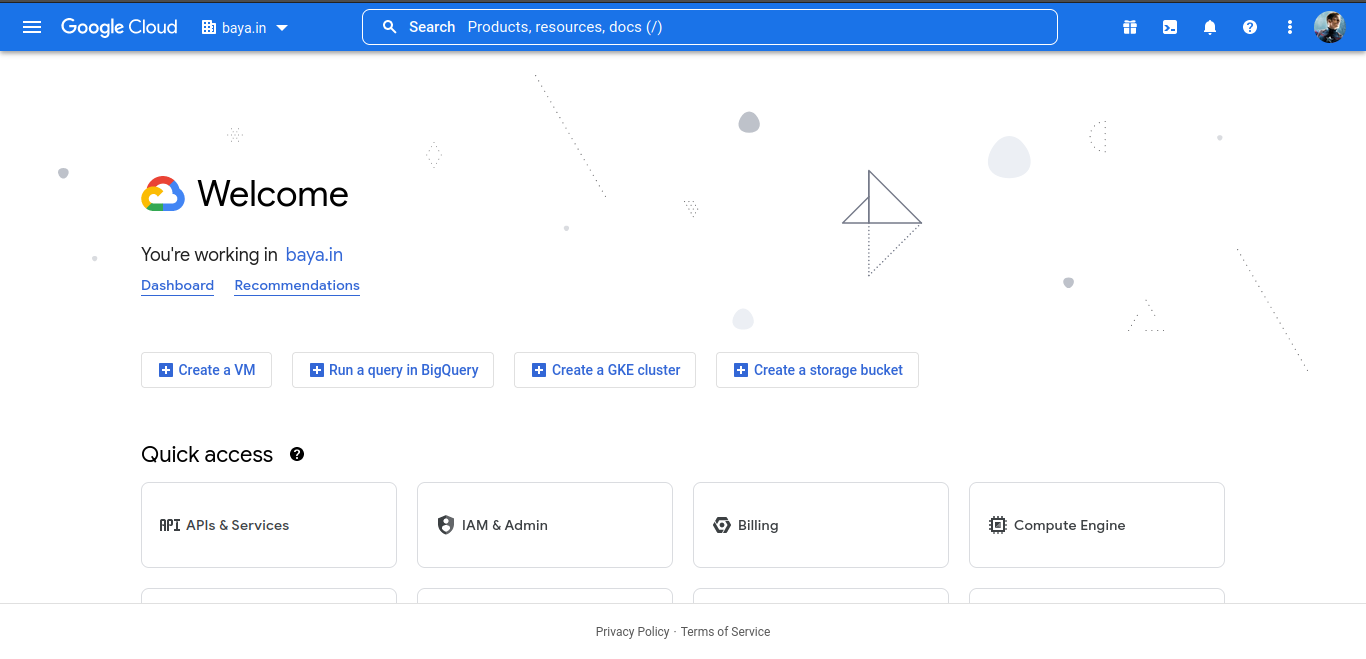
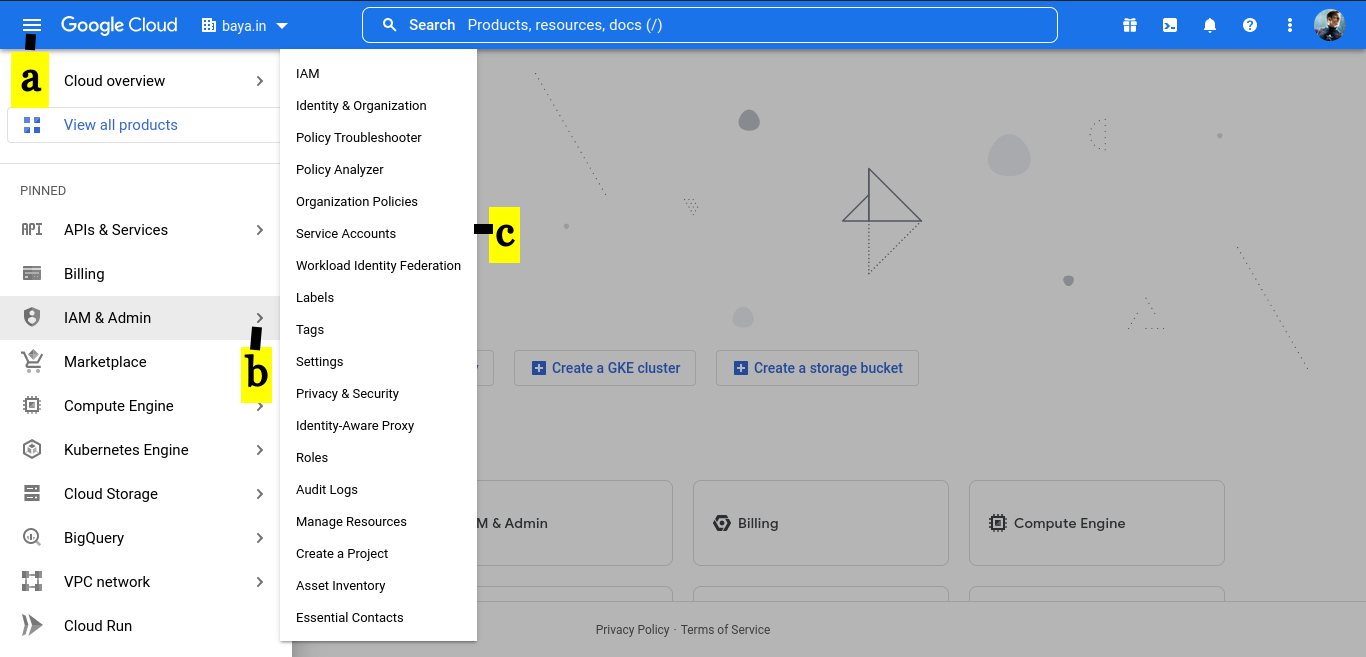
a. Select top left panel.
b. Select IAM & Admin.
c. Select Service Accounts.
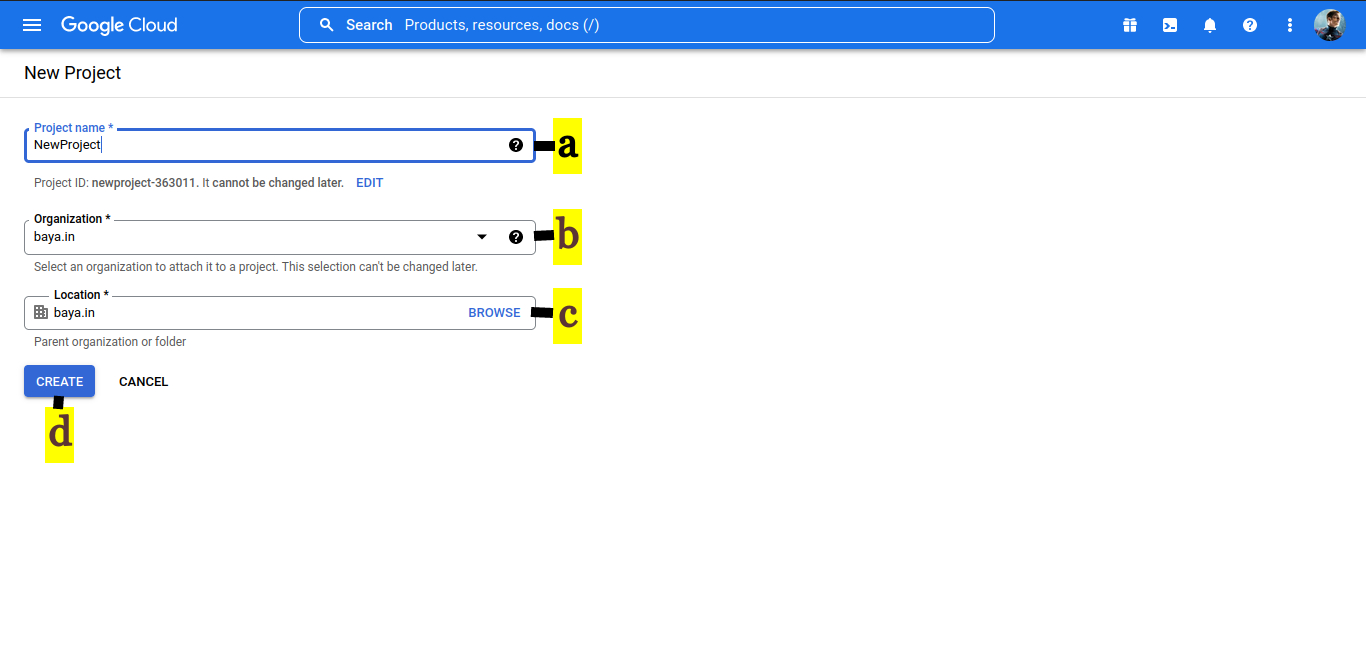
2. CREATE A PROJECT
a. Provide Project name.
b. Select the Organization.
c. Browse for the Location.
d. Click on CREATE.
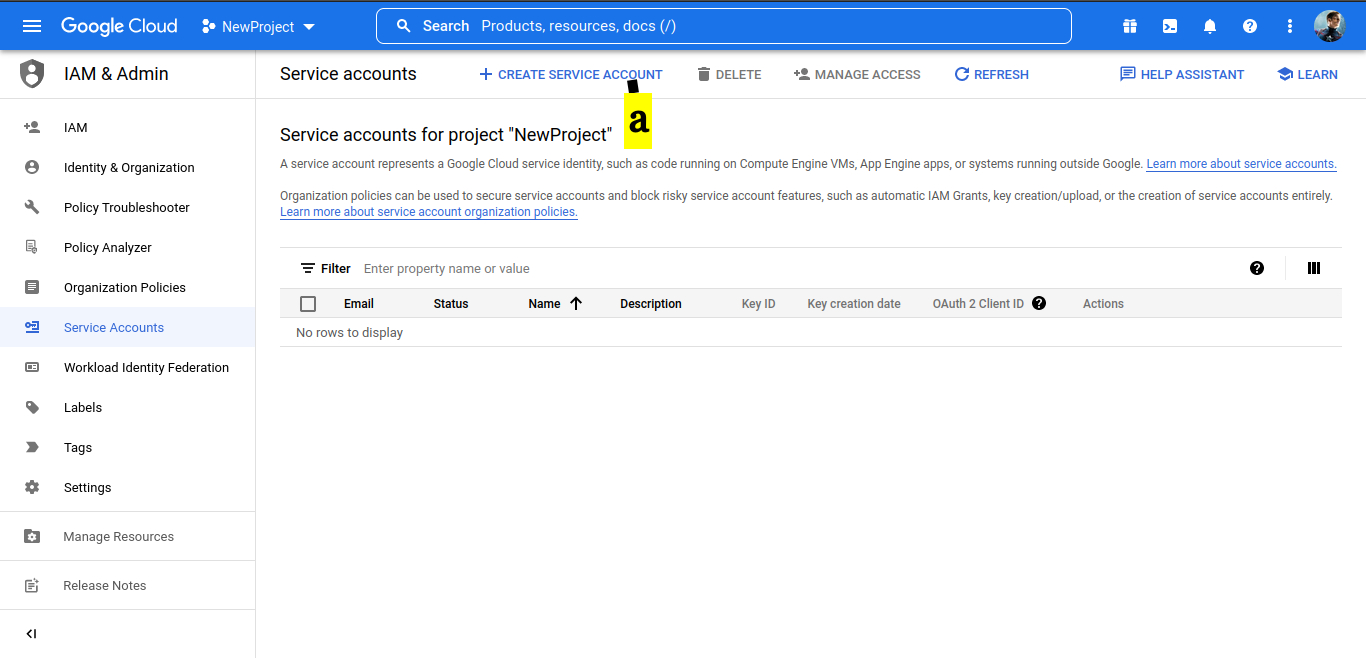
3. Create a service account
a. Click CREATE SERVICE ACCOUNT.
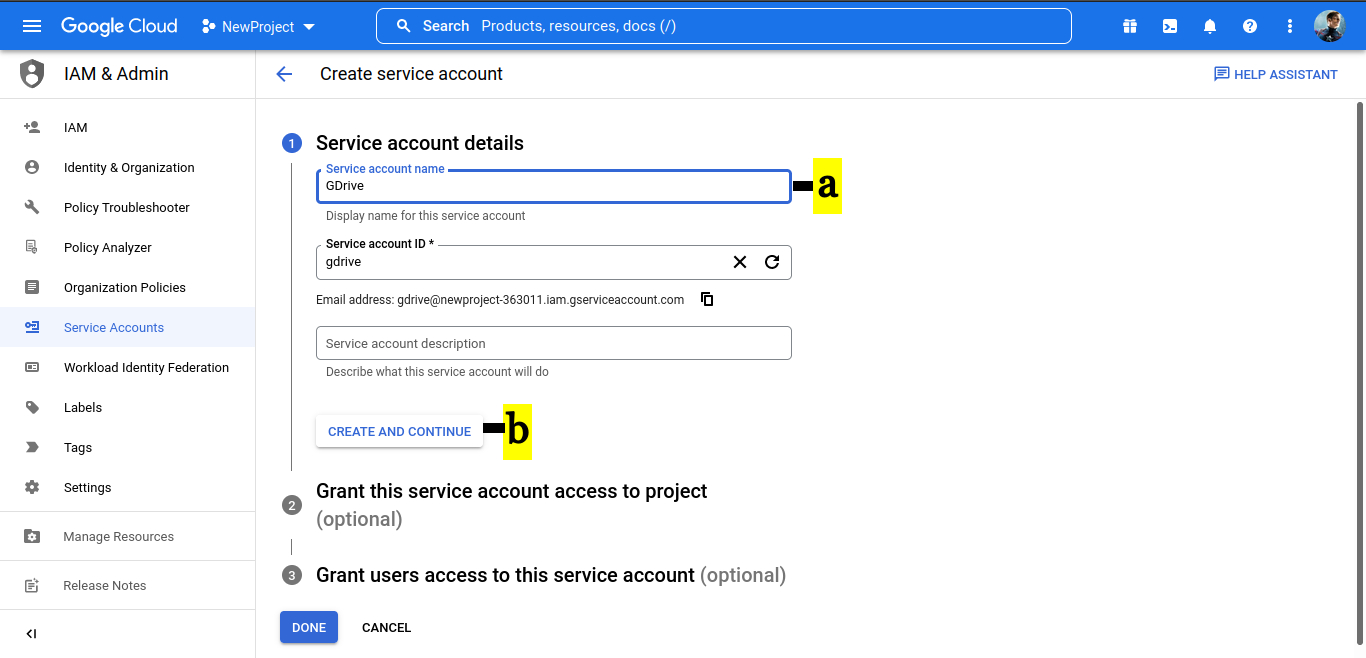
4. On the service account details window.
a. Provide Service account name.
b. Click on CREATE AND CONTINUE
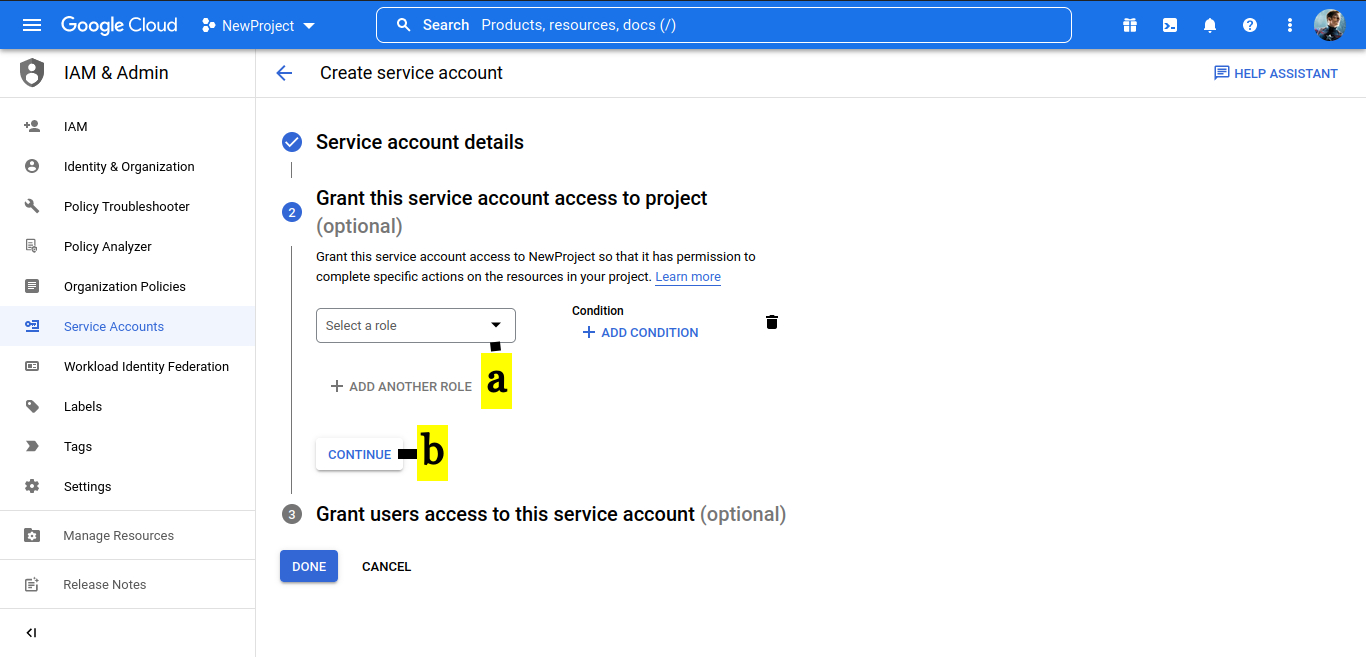
5. Grant this service account access to project.
a. Select a role (Basic -> Owner)
b. Click on CONTINUE
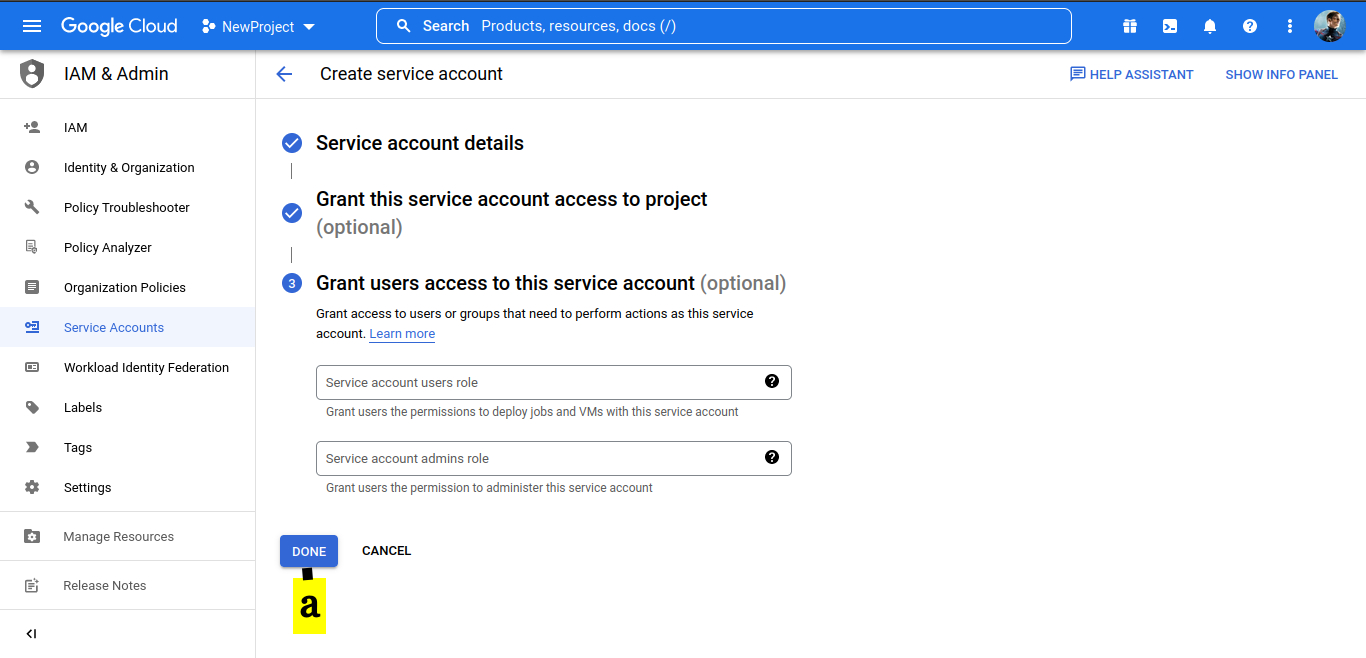
6. Grant users access to this service account (optional)
a. Keep the defaults and click on DONE
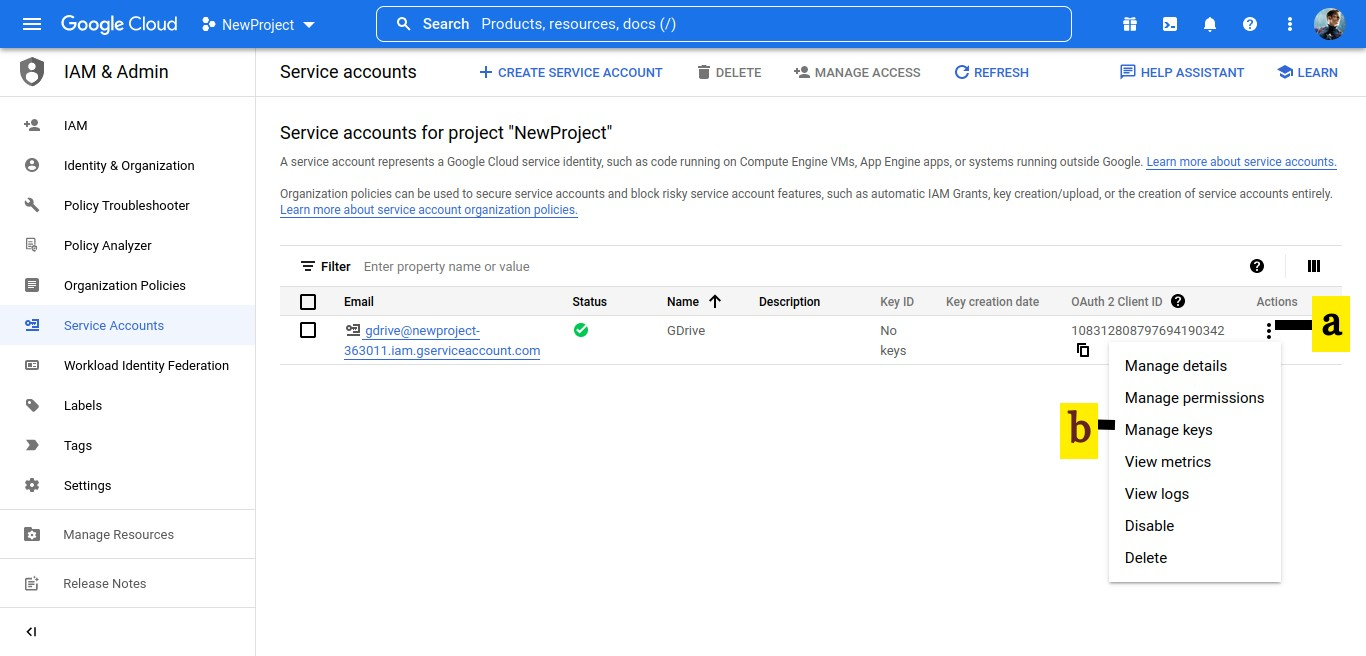
7. On service account window.
a. Click on Action button denoted by the three vertical dots
b. Select Manage Keys
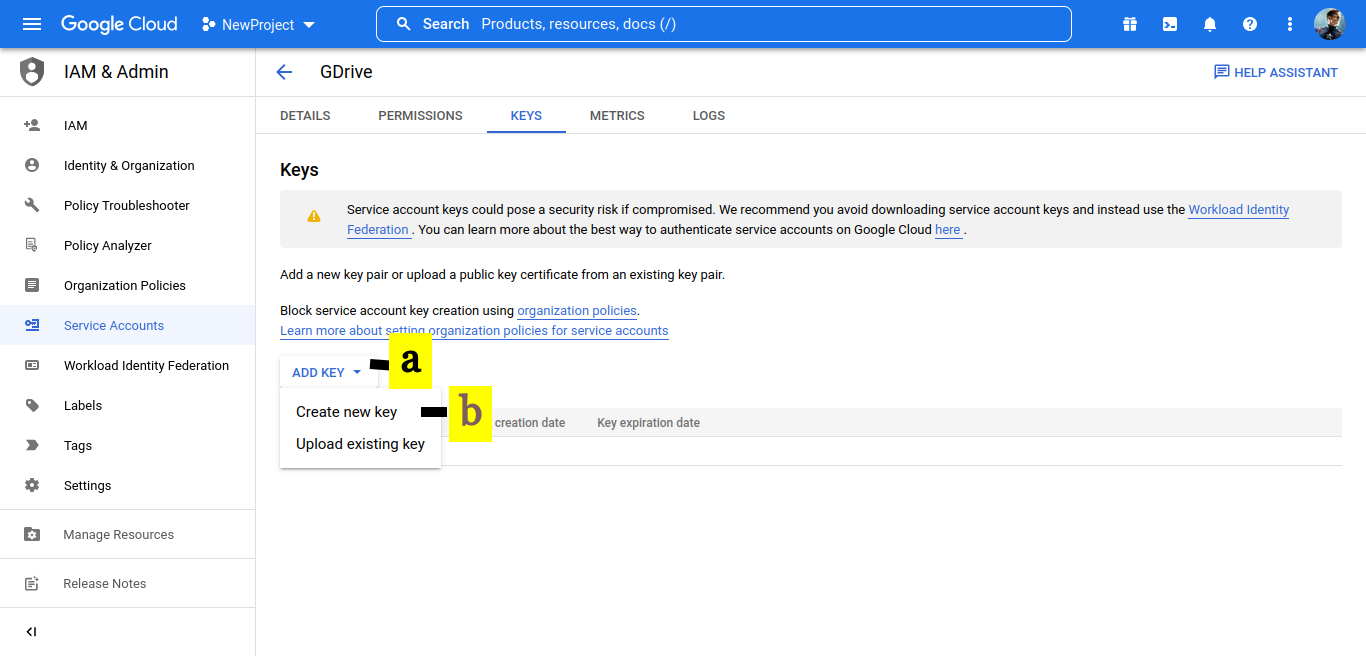
8. Create a key
a. Drop down ADD KEY
b. Select Create new key
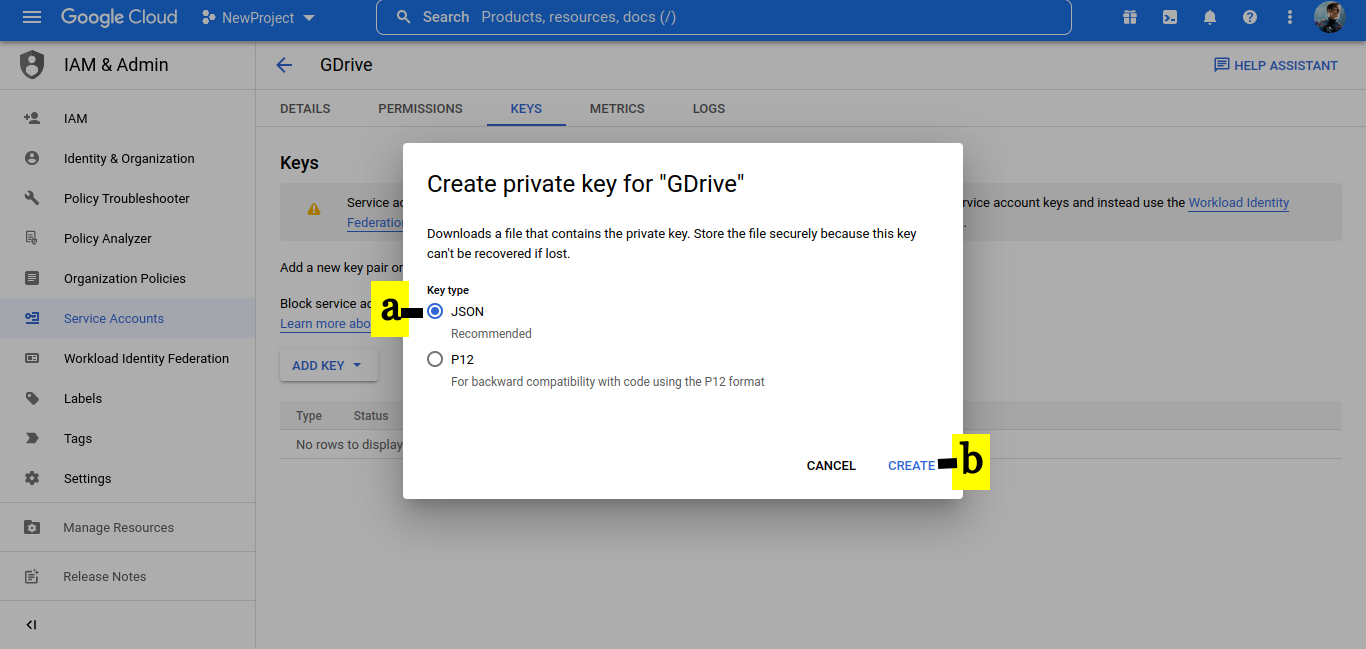
9. In Create private key.
a. Select JSON
b. Click on CREATE. On creation, the key will be downloaded to your desktop. This will be required to register in Vaultastic
- IMPORTANT NOTE: If you are unable to generate a key, then follow the steps given here.
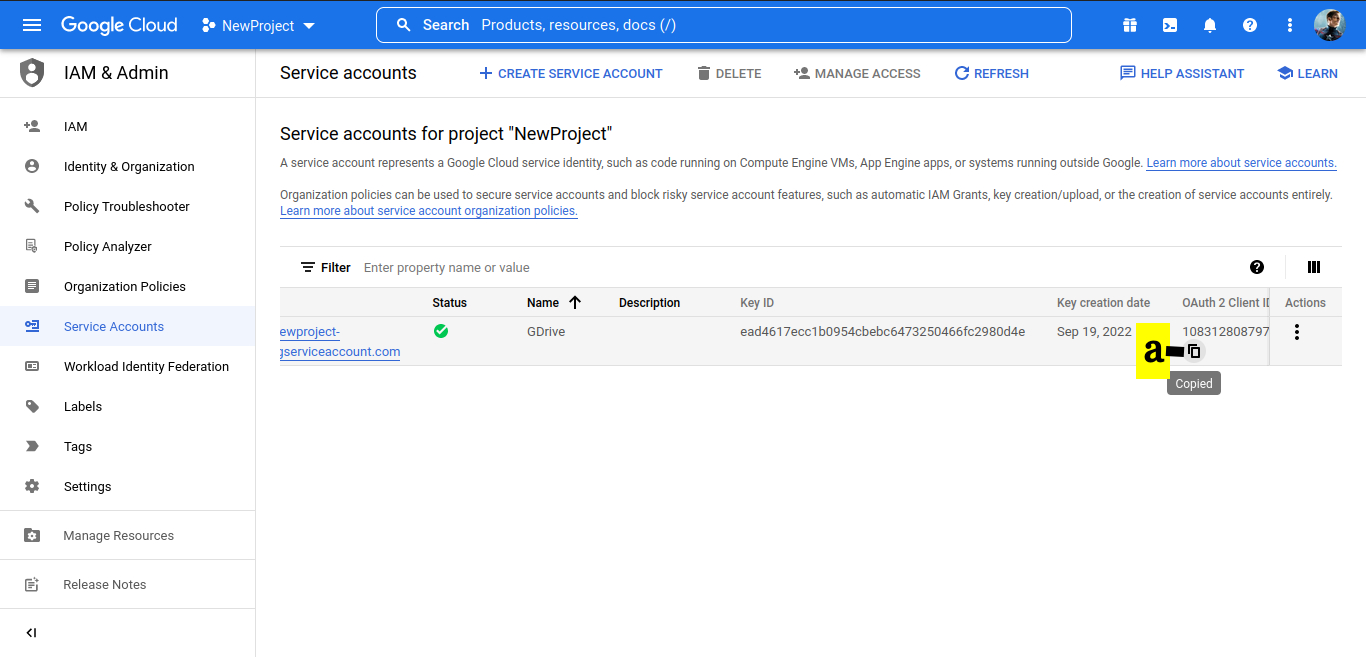
10. Copy OAuth 2 Client ID - this is required for the domain wide delegation
a. On copying the key, you will see the message Copied
Step 2: Enable the API Services
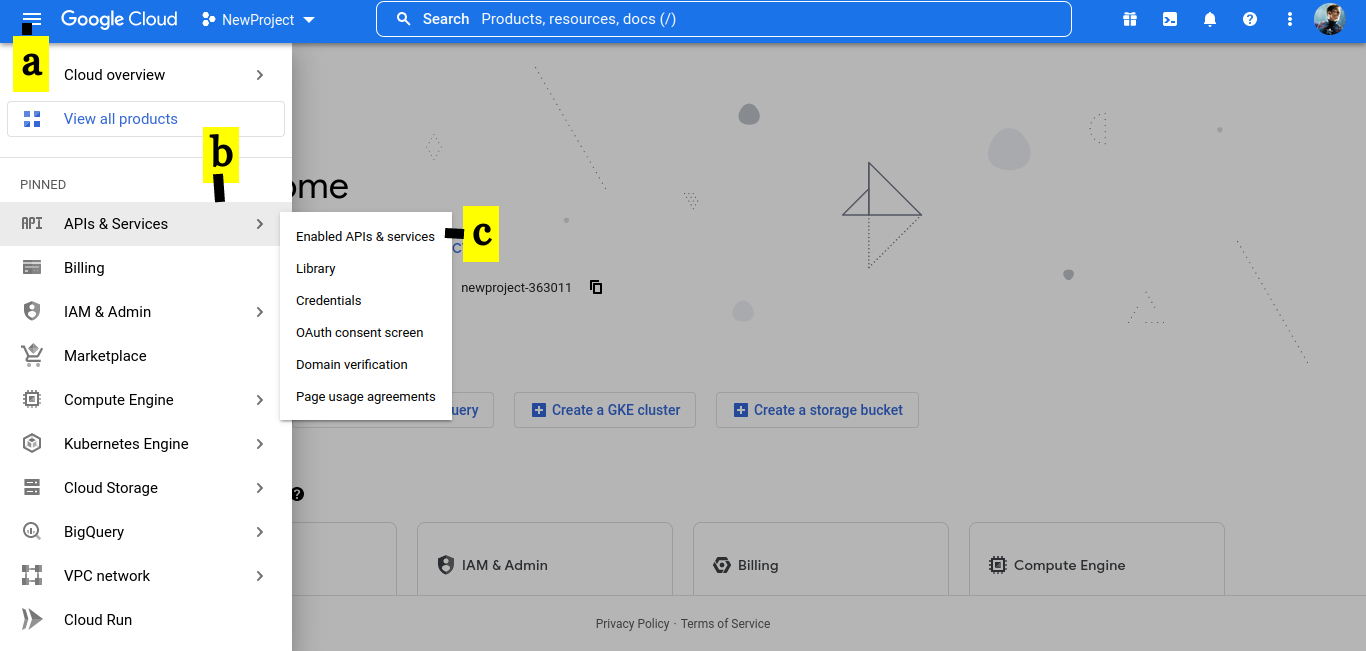
1. Enable API Services
a. Click on top left panel
b. Select APIs & Services
c. Click on Enabled APIs & services
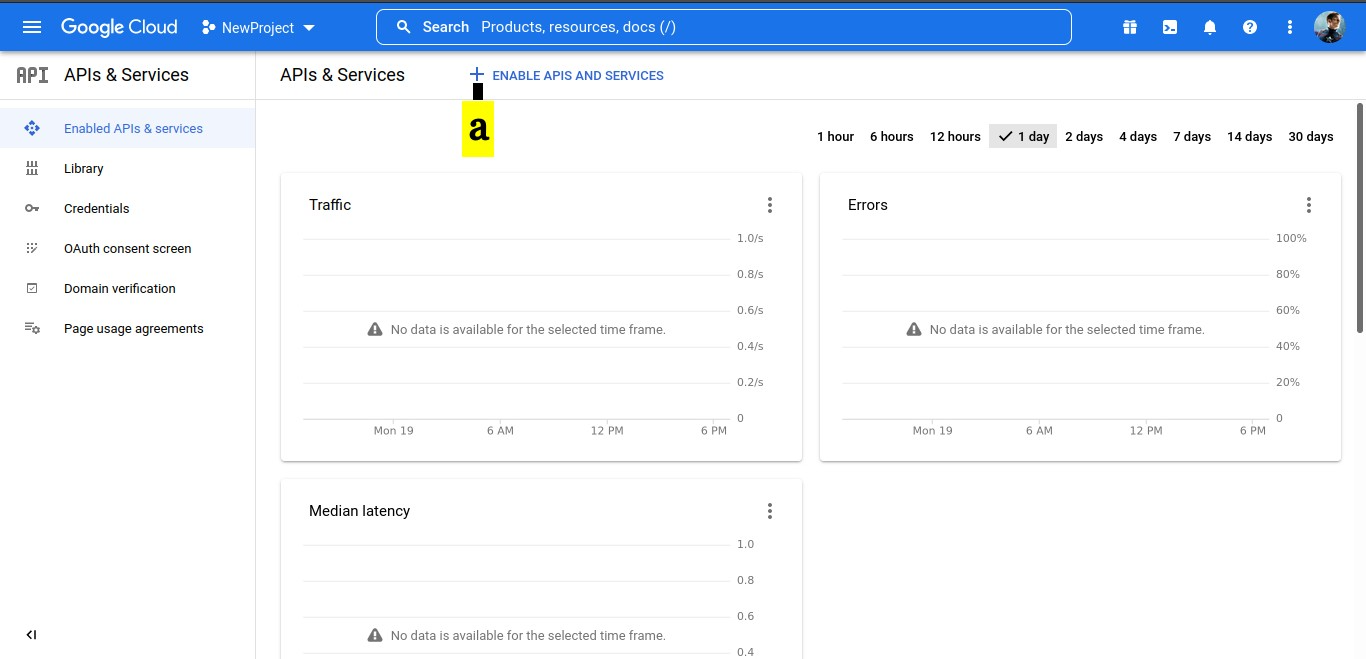
2. In the APIs & Services console
a. Click on ENABLE APIS AND SERVICES
3. In the API Library,
b. search for the required APIs
c. Enable the API.
The table below gives the list of API required to be enabled for different data source
| Data source | API | Screenshots |
|---|---|---|
| Drive Data For: 1. User's data in drive 2. Google Chat data | Google Drive API |   |
| Mailbox data For user's mailbox | GMail API |   |
| Directory Data For 1. Distrubution List members Required for scheduler 2. Google Chat Data 3. Mailbox size 4. Audit Reports | Admin SDK API | 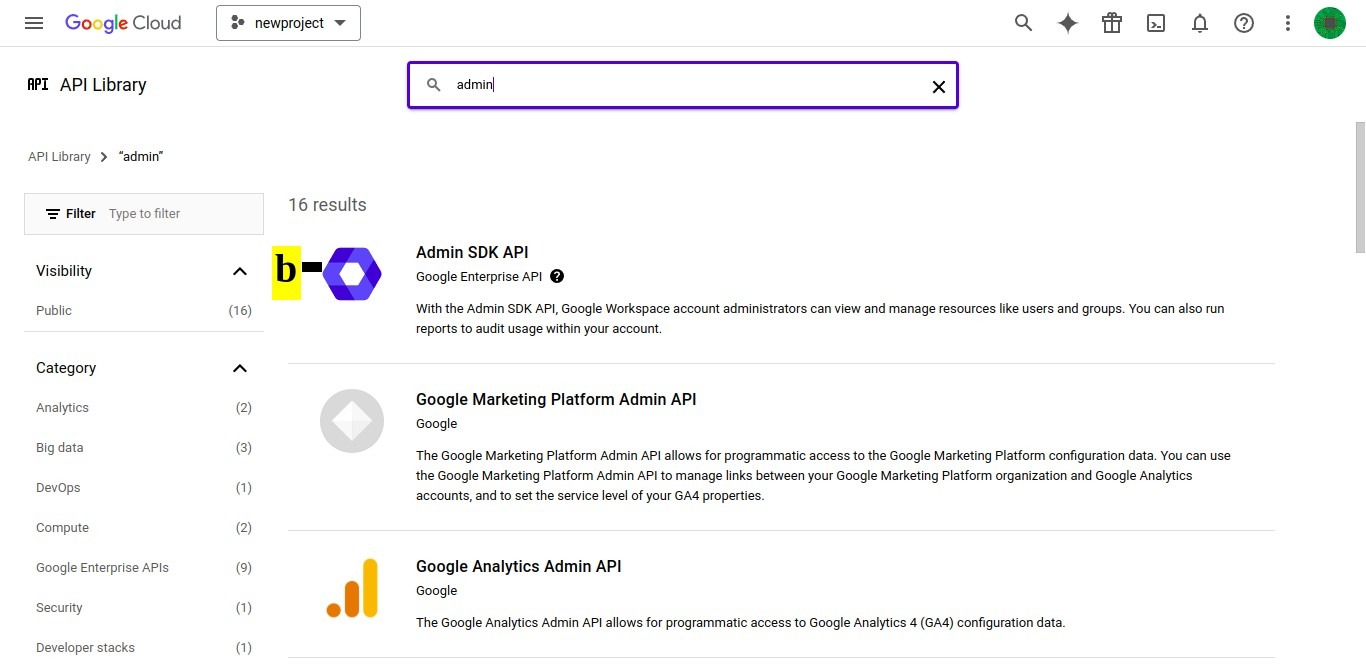  |
| Google Chat Data | Google Chat API |
IMPORTANT NOTE: In addition to Enabling the Google Chat API, you have to update the configuration as given here. |

